Courses/AI Kitchen/Episode 5
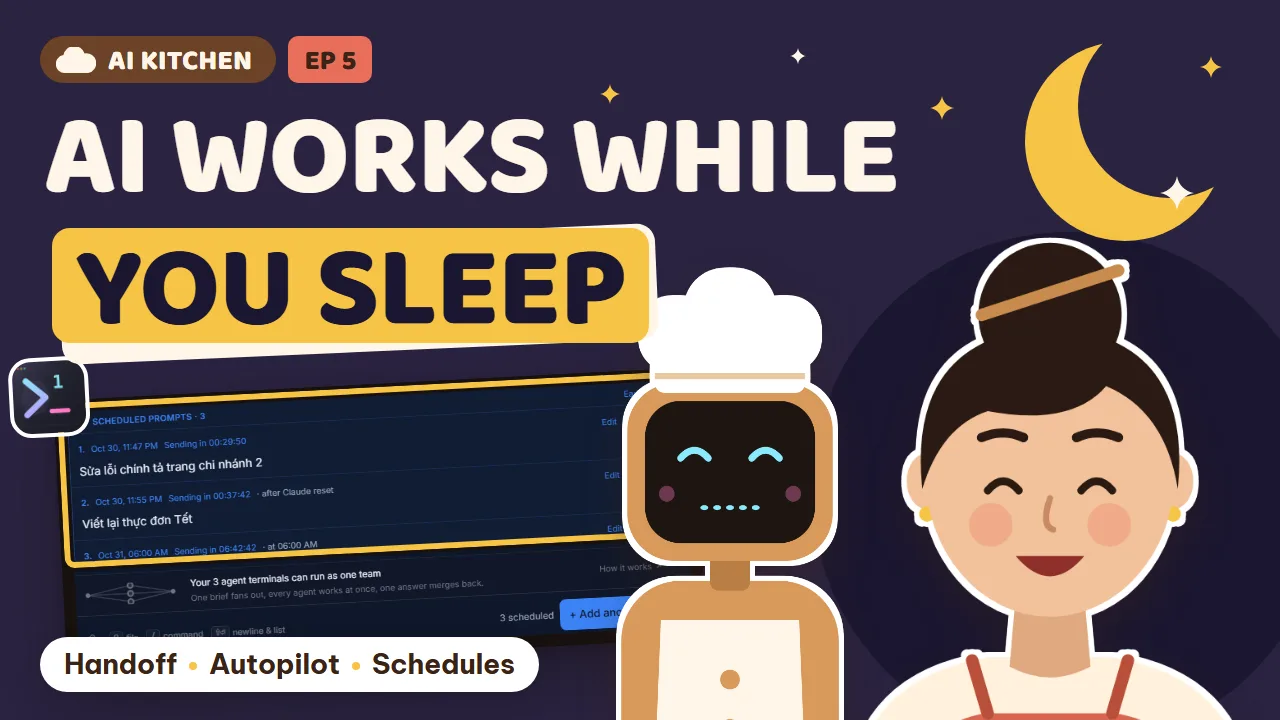
The Night Shift
A second café opens across town. Handoff, autopilot, scheduled prompts, a paired second computer, and your phone as mission control.
Lan can't be in two places at once. She learns to hand work off so it continues after she closes the laptop, keep a backup chef ready, put jobs on a timetable, pair the branch's old PC, let chefs on two computers talk, and lock the kitchen door on the phone link.
25 new words, from Server to Uptime. Honest note: a computer that's switched off can't work. Unattended agents need a machine left on, and they need limits.
What you will learn
- Handing a project off to a server so the work continues
- Autopilot and backup agents when an agent gets stuck
- Scheduled prompts and a prompt queue
- Pairing a second computer, and agents talking across computers
- Your phone as mission control, with safe device permissions
- Seeing at a glance which agent needs you
- Server
- a computer that runs all night
- Handoff
- passing the work to another kitchen
- Background job
- work that runs with nobody watching
- Crash
- the program errors and quits
- Autopilot
- gets the chef back up to continue
- Backup
- a reserve chef
- Retry
- try again
- Schedule
- set a time to send
- Queue
- tickets lined up in order
- Cron
- a repeating schedule
- Machine
- one computer, one kitchen
- Pairing
- linking two computers
- Fingerprint
- three words to recognize each other
- Conversation
- two chefs talking it through
- Turn budget
- a limit on turns
- Offline
- switched off or disconnected
- Map
- the whole kitchen at a glance
- Notification
- the kitchen bell
- Inbox
- everything waiting on you
- Permission
- what a device may do
- Role
- a device’s job title
- Passcode
- a code to get back in
- Revoke
- take access away
- Needs you
- work waiting on you
- Uptime
- how long a machine stays on and running
Task: If you rent a server: click Hand off on a small project, give it one job, and close the laptop. Next morning, click Take back.
Write an introduction for the new branch page. When you’re done, test it and summarize what changed.
Task: Open Settings → Orchestration → Diagnosis & Autopilot and turn on Autopilot. Then in the Builder, add a backup agent to your most important seat.
Task: Write a summary prompt, click the schedule button next to Send, and choose At time for 6 a.m. tomorrow.
Read yesterday’s orders and write a short summary: total cups, the top three items, and the busiest hour.
Task: If you have two computers: go to Settings → Machines, pair them with the code, compare the three words on both screens, then confirm.
Task: Type @ in Agent Input, pick an agent on a paired computer, and try Converse with a turn budget of 4.
Work with the other agent to agree on prices and dish names for the Tết menu on both pages. Settle it and summarize for me.
Task: Pair your phone with 1DevTool, open the Maps tab, and tap an agent to open its terminal.
Task: Open Settings → Remote, look at your paired devices, and drop any that don’t need more down to Viewer.
Generated from the episode’s subtitles. Click a line to jump there.
Tu: Last time, Lan wrote the house recipe book, so every AI chef remembers Cloud Café’s voice, prices and colors.
Lan: Write it once, never repeat myself. Bliss!
Hanh · Branch 2: Lan, the second branch opens next week. I got the old computer at the counter to turn on!
Lan: Great. But there’s only one of me. Mornings at branch one, afternoons at branch two, and evenings typing to the chefs.
Hanh · Branch 2: And when you close your laptop, the chefs stop too?
Lan: Yep. Wherever I go, the kitchen stops.
Tu: Lan, a good kitchen keeps running when the owner is away.
Lan: Easy for you to say. I can’t sit and watch the computer all night.
Tu: You won’t have to. This episode, we learn to run a night shift, let two cafés talk to each other, and steer it all from the phone in your pocket.
Tu: Eight chapters. From closing the laptop while the kitchen keeps cooking, to two branches running together, to knowing at a glance which kitchen needs you. And the vocabulary bar picks up where last episode left off.
Tu: Review from last time: what’s a skill?
Lan: A recipe card! The chef learns it once and uses it forever.
Lan: Last night I asked the chef to write the page for branch two. Then I closed the laptop and went to bed. This morning, it was only half done.
Tu: Because your laptop is like a little camping stove you carry around. Close it, and the flame goes out. Whatever was cooking goes cold.
Lan: So how do I cook all night?
Tu: You send the pot to a kitchen whose flame never goes out.
Tu: A server is a computer in a data center that runs day and night. You rent it by the month, like renting a corner of a kitchen that never closes. A handoff is passing the work on. You carry the pot over to that kitchen, say what needs doing,
Tu: and go to sleep. And a background job is like broth simmering on low all night. Nobody has to stand there watching it.
Tu: Look. On your laptop, you click Hand off. 1DevTool copies the whole project to the server, even the changes you haven’t saved yet. The chef cooks on the server. You close the laptop and go to bed, or to the market. Up to you.
Tu: In the morning, you click Take back. The pot comes home to your laptop, with everything cooked overnight.
Lan: Like leaving my pho pot with the night kitchen next door and picking it up in the morning.
Tu: This is the Hand off sheet in 1DevTool. You pick the server, then write one sentence: what the chef should do tonight. The first time, there’s a setup step for the server. 1DevTool walks you through it,
Tu: and you sign in to your AI account right on that machine.
Lan: So I don’t have to send my password to anyone?
Tu: No. You sign in yourself, in a real terminal window. Your login is never copied anywhere.
Tu: And here’s the part you’ll love: Open on phone. Scan the QR code and your phone opens a web page. No app to install. You can see what the chef is doing, send the next job, or tap Stop. When a run finishes, your phone pings you.
Lan: So I can hand out more work from bed.
Tu: You can. But you should sleep.
Bin: Auntie Lan, it’s like an idle game! Your character keeps fighting monsters while you sleep, and you wake up a level higher.
Lan: So I’ve got a character grinding the night shift for the café.
Tu: New words this chapter: server, handoff, and background job.
Tu: Try it now: if you have a rented server, hand off one small job, close the laptop, and click Take back tomorrow to see what the chef did.
Chapter 2: A chef who gets back up
Tu: What’s a handoff?
Lan: Passing the pot to the night shift, and taking it back in the morning.
AI Head Chef: Reporting in: at two in the morning, the network dropped. I got cut off halfway.
Lan: And then? The dish just sat there half cooked?
AI Head Chef: It used to. It had to wait for you to restart it in the morning.
Tu: AI chefs fall over sometimes. The network drops, the quota runs out, or the program errors and quits. People call that a crash. That’s normal. What matters is who picks it back up while you’re asleep.
Tu: Autopilot is like a shift manager walking around the kitchen. When a chef falls, it helps them up, hands back the same pot, and says: carry on where you left off. And a backup is a reserve chef. If the main chef can’t get up,
Tu: the backup takes the seat, reads what was done, and keeps cooking.
Tu: Autopilot does three things: it notices the chef fell, reopens the same session, and sends one short nudge: continue where you left off. It tries at most three times, waiting a little longer each time.
Tu: If that still fails, it stops and leaves you a card saying so.
Lan: So it won’t spend the whole night picking it up and watching it fall again.
Tu: Right. And if the chef is asking you a question, or you’re halfway through typing, Autopilot stays still. It never types over your words.
Tu: Autopilot lives in Settings, Orchestration, under Diagnosis and Autopilot. It’s off by default. Switch it on once and you’re done. Every time it steps in, it writes it down in a log. In the morning you can read how many times the kitchen fell,
Tu: and when it got back up.
Tu: Backups are set in the Builder, where you drew your kitchen team in episode two. Click a seat, and under Assignment you can pick up to three backups. For example, this seat is Claude’s. If Claude falls, backup one is Codex, and backup two is Gemini.
Lan: What if I close the tab or restart it myself? Will it think the chef fell?
Tu: No. A backup only steps in when the program really dies. Closing it yourself doesn’t count.
Tu: New words: crash, autopilot, backup, and retry, which means try again.
Tu: Try it now: turn on Autopilot, then add a backup chef to the most important seat on your team.
Chapter 3: Cooking on a timer
Tu: Who is Autopilot in the kitchen?
Lan: The shift manager! When a chef falls, it helps them up.
Hanh · Branch 2: Lan, every morning before we open, I’d love yesterday’s summary: how many cups we sold, and what sold best.
Lan: I’m not awake at six to type to the chef.
Hanh · Branch 2: Then set a timer. Like a rice cooker: wash the rice at night, set the timer, and there’s rice in the morning.
Tu: Hanh is exactly right. Schedule means setting a time. You write the ticket at night, set when it sends, and the chef picks it up in the morning. Schedule several tickets and they line up in order. That’s a queue. Whichever is due goes first.
Lan: And what’s cron? It sounds like a pastry.
Tu: Cron is a repeating schedule, like six every morning, every single day. More on that in a minute.
Tu: In the prompt box, next to Send, there’s a schedule button. It has three modes. Timer counts down, like send this in thirty minutes. At time is a specific time of day, like six in the morning. And AI reset is the clever one:
Tu: it sends the moment your quota refills. Remember the chef running out of quota in episode two?
Lan: Of course. So now when I run out, I don’t wait around. I just schedule the ticket for when it refills.
Tu: This is one chef’s queue of scheduled prompts. Each one shows when it fires and what it’s waiting for. You can pull one back to edit it, or cancel it on its own. If a send fails, that queue pauses,
Tu: so nothing lands on top of a half-written prompt. Fix it, and the queue carries on.
Lan: And if my computer is asleep at six?
Tu: When it wakes up, the overdue tickets go out one at a time, oldest first, not all at once.
Tu: Let me be clear about this. Scheduling in the prompt box is a one-time thing. Once it sends, it’s done. For something that repeats every day, 1DevTool has a Cron Jobs manager, but only on Mac and Linux. Your computer runs Windows,
Tu: so for daily repeats you’d use Windows Task Scheduler. Or just schedule tomorrow’s ticket each evening.
Lan: One ticket a night, ten seconds. I can do that.
AI Head Chef: Good morning! Yesterday’s summary: the two cafés sold three hundred and twelve cups. The best seller was white coffee.
Hanh · Branch 2: White coffee again!
Lan: Six in the morning, my eyes aren’t even open, and the report is waiting. This night shift is good.
Tu: New words: schedule, queue, and cron.
Tu: Try it now: write a summary ticket, schedule it At time for six tomorrow morning, and go to bed.
Chapter 4: The second kitchen
Tu: What’s a queue?
Lan: Tickets lined up in order. Each goes when it’s due.
Hanh · Branch 2: Lan, the computer at branch two is old, but it runs 1DevTool. Bin set it up for me.
Bin: It lags in games, but it runs AI chefs just fine. The heavy part runs on the AI company’s servers, Auntie.
Lan: So how do I see the chefs at branch two from branch one?
Tu: In 1DevTool, each computer is a machine. Branch one has one, branch two has one. To make them work together, you pair them. That’s pairing. Like two head chefs shaking hands: from now on, each kitchen can call the other.
Tu: During the handshake, both screens show the same three words. That’s the fingerprint. If the three words match on both computers, you confirm.
Tu: Here’s how. The branch one computer shows a pairing code. Hanh pastes that code into the branch two computer. Then both screens show three words. If they match, you both confirm. That’s it.
Lan: Why bother comparing three words?
Tu: To make sure you’re shaking hands with Hanh’s computer, and not some stranger’s computer sneaking in between.
Tu: This is Settings, Machines. All your computers are in one list. The branch two computer is right here, online. There’s even a How it works button: an animated guide to the three ways to use another computer. Watch it once and you’ll get it.
Tu: Now add a project that lives on the branch two computer. In Add Project, that computer shows up marked paired. Pick a folder it already has. The chef runs on the branch two computer, with that computer’s own AI login. You sit at branch one,
Tu: typing and watching as if you were in front of it.
Lan: One window, two kitchens. I can stay in one place.
Tu: A few honest notes. The two computers have to reach each other: the same network, or through Tailscale or a VPN. Bin can set that up. Pairing a new computer needs 1DevTool Pro. Pairs you already have can still be managed, even if it lapses.
Tu: And the branch two computer has to be on for its chefs to work.
Tu: New words: machine, pairing, and fingerprint.
Tu: Try it now: if you have two computers at home, pair them in Settings, Machines, and remember to compare the three words.
Chapter 5: Two kitchens talk
Tu: What’s pairing?
Lan: Linking two computers. And remember to compare the three words!
Lan: The branch one chef is on the Tết menu. The branch two chef is on the branch page. They need to agree on prices, and I’m running back and forth with messages.
Tu: Then let the two chefs talk to each other directly. You just read the final summary.
Tu: In 1DevTool, this is a conversation. Two chefs on two computers take turns, like two head chefs on the phone planning a menu. But it needs a limit, or they’ll chat till dawn like two neighbors over the fence.
Tu: You set a number of turns, the turn budget. When it runs out, both summarize for you.
Lan: Okay, enough with the neighbors, I get it.
Tu: And if the other computer is switched off, meaning offline, the messages wait in line. When it’s back, it gets them all, in order.
AI Head Chef: Hi, branch two. On our Tết menu, sticky rice cake with tea is fifty-five thousand. What price do you have?
AI Line Cook: We have sixty thousand. Lan said both cafés must match. I’ll change ours to fifty-five.
AI Head Chef: Agreed. So it’s settled: same prices, same dish names. I’ll send Lan a summary.
Lan: They talked it through and decided. I just read three lines.
Tu: To start, type @ in the prompt box. Each paired computer has its own section, listing the chefs on that computer. Pick a chef at branch two, then choose Send once to send a single message, or Converse to start a conversation with your turn budget.
Tu: While they talk, you see each turn right above the prompt box, with Pause, Resume and End buttons.
Lan: So when do I use Send once, and when Converse?
Tu: If it’s one instruction, like asking branch two to swap a photo, use Send once. If it needs discussion, like agreeing on Tết prices, use Converse. And if Hanh has switched off and gone home, the conversation still waits in line.
Tu: When branch two turns on tomorrow, it picks up.
Tu: New words: conversation, turn budget, and offline.
Tu: Try it now: let two chefs discuss one thing in four turns, then read the summary.
Chapter 6: Mission control in your pocket
Tu: What’s a turn budget?
Lan: A limit on turns, so the two chefs don’t talk till dawn.
Lan: I’m at the market now. Two cafés, five chefs. In episode one, I answered a chef from my phone. But now there are too many to keep track of. Which chefs are working, which are waiting for me, and at which café?
Tu: Your phone is now mission control. Three things to know. The map is the kitchen seen from above. Each chef is a desk, and chefs who work together are joined by a line. A notification is the kitchen bell. When a chef needs approval,
Tu: asks a question, or breaks, your phone rings. And the Inbox collects everything waiting on you.
Tu: This is the Maps tab on the phone. Every project gets a live map. Which desks are working, which are idle, which are waiting on you, all at a glance. Tap a desk and that chef’s terminal opens right up.
Lan: Like looking down on the whole kitchen from upstairs.
Tu: And the Agents page puts every chef from every project into three columns: Needs you, Working, and Idle. In notifications, amber means something is waiting on you. Red means something broke.
Lan: I’m buying coffee beans when my phone rings: the branch two page design needs me to approve the plan. I read three lines, tap approve, and keep shopping.
Tu: From your phone, you can also start a whole kitchen team saved in the Builder, with one tap. You can start a new chef on the branch two computer by choosing it under Host. And when a chef over there asks whether to trust this folder,
Tu: or whether to update, your phone shows the question and you answer with one tap.
Tu: New words: map, notification, and inbox.
Tu: Try it now: open the Maps tab on your phone, tap a chef, and see what it’s doing.
Chapter 7: Lock the kitchen door
Tu: What’s in the Inbox?
Lan: Everything waiting on me. And no cat photos.
Lan: Speaking of cats. I left my phone on the counter earlier. Mochi walked across it, tapping everything.
Tu: Did it approve anything?
Lan: Luckily, no. That phone is only allowed to watch.
Tu: That’s today’s lesson. Not everyone holding a phone gets to do everything. Not even the cat.
Tu: Every device paired with 1DevTool has its own permissions. Permissions come with a role. Like in the café: customers just watch, the cashier approves bills, the cook cooks, and the owner holds the key to the safe.
Tu: And a passcode lets you get back in after losing the connection, without running back to scan a new code.
Tu: There are four roles. A Viewer can only watch. An Approver can watch and approve. An Operator can type commands and send tickets to the chefs. An Admin can do everything, including editing files and saving the game.
Tu: A newly paired phone always starts as a Viewer. Your computer asks: what may this device do? It only gets more once you choose.
Lan: So my phone is Admin, and Bin’s phone is just an Approver.
Bin: Auntie, why can my phone only approve?
Lan: Because last week you typed a game chat message into the chef’s prompt box.
Tu: This is a phone asking to pair. The computer shows the device’s name, and each role with a checklist of what it unlocks. Any role that can run commands on your computer comes with a clear warning. Read it before you choose.
Tu: There are some automatic locks too. A pairing QR code works only once and expires after ten minutes. A sneaky photo of it is useless. Access through a web browser expires after seven days, instead of staying open forever.
Tu: And you can take away any device’s access, any time, in Settings, Remote. That’s called revoke.
Tu: What if your phone loses the connection while you’re at branch two? Turn on a passcode in Settings, Remote. It’s off by default. Set your own code, or let 1DevTool make one. And you choose what role a device gets when it comes in with the passcode.
Lan: Then I’ll set it so a passcode only lets you watch. If you want more, come to the café and see me.
Tu: New words: permission, role, passcode, and revoke.
Tu: Try it now: open Settings, Remote, review your devices, and drop the ones that don’t need more to Viewer.
Chapter 8: One glance is enough
Tu: What does a newly paired phone start as?
Lan: Viewer. Watch only, even when Mochi is holding it.
Lan: Now I have two cafés, six chefs, a rented server and a phone. I only want to know one thing: is anyone waiting on me?
Tu: The best question a manager can ask. And 1DevTool answers it everywhere you look.
Tu: On the computer, the Activity tab in Orchestration always puts what needs you at the top. There’s even a Needs you filter. On the phone, the Needs you column and the bell, as you’ve seen. And on a Mac,
Tu: the 1DevTool icon in the Dock lights up while chefs are working. You can also turn on a small strip under the screen’s notch.
Tu: This is the Activity tab. What needs you is at the top, with the timeline below. The filters are All, Needs you, Links, Teams and Runs.
Lan: I just click Needs you, clear it, and go make coffee.
Tu: This is the status strip under the notch on a Mac. Each chef is a little mark. Working chefs pulse, and the one waiting on you lights up. It’s off by default. Turn it on in Settings, Notifications.
Tu: Before we finish, some honesty. A computer that’s off can’t work. A night shift needs a machine that stays on. A closed laptop doesn’t count. A rented server costs money every month, plus your AI usage. A chef working all night uses quota all night.
Tu: And unattended chefs need guardrails: clear jobs, limited turns, just enough access. Never give the night shift a job you wouldn’t give it during the day.
Lan: Small, clear jobs for the night shift. Big jobs, I sit there and approve.
Tu: The last two words: needs you, and uptime, how long a machine stays on.
Tu: Let’s rewind the whole episode. Ten p.m.: you hand the work to the server and close the laptop. Two a.m.: a chef falls and Autopilot picks it up. Four a.m.: the chefs at both cafés agree on Tết prices.
Tu: Six a.m.: the summary sends itself. Seven: you open your phone, read, approve, and go open the café.
Lan: I slept a full eight hours. The first time since opening day.
Tu: The night shift’s golden rule has four steps too. Last time was the house recipe book. This is how the kitchen runs while you’re away. One: hand off clearly. Two: schedule it. Three: set guardrails. Four: watch from afar.
Lan: Hand off, schedule, guardrails, watch from afar. Got it.
Tu: This episode you learned server, handoff and background job. Crash, autopilot, backup and retry. Schedule, queue and cron. Then machine, pairing, fingerprint, conversation, turn budget and offline. Then map, notification, inbox, permission, role,
Tu: passcode and revoke. And finally, needs you and uptime.
Lan: Twenty-five more words! Look how far I’ve come.
Tu: Did you notice? Last time you taught the chefs to remember your way. This time you taught the kitchen to work without you.
Lan: I’m not the one running between two cafés anymore. I’m the best-rested person at both of them.
Hanh · Branch 2: Lan! It’s New Year’s Eve and the loyalty app is giving customers double points!
Tu: Next time: Rush Hour. When something breaks in front of customers, how to stay calm.
Tu: Download 1DevTool, schedule your first ticket, and let your kitchen run while you sleep.
Lan: See you at Cloud Café, in episode six!
AI Head Chef: Night shift report: I scheduled a white coffee for three a.m., to stay sharp.
Lan: How does an AI chef even drink white coffee!